How to Export YouTube Comments to a Spreadsheet for Free
Quick answer (TL;DR): To export YouTube comments to a spreadsheet, paste the video URL into The YouTube Tool's comment downloader and export a CSV. Open that CSV directly in Google Sheets (File > Import) or Excel, and you'll have one comment per row with columns for author, text, likes, replies, and date, ready to sort and analyze.
Downloading the comments is the easy part. The part nobody explains is what happens after you have a file: getting it to open cleanly, fixing the rows that break, and actually turning thousands of comments into something you can read. This guide covers the full spreadsheet workflow, with formulas you can paste straight into Excel or Google Sheets. If you just want the raw export and a comparison of every download method, start with our pillar guide on how to download YouTube comments.

When should you export YouTube comments to a spreadsheet?
A spreadsheet is the right format when you need to work with comments, not just read them. Reach for an export when you want to:
- Sort by engagement to see the top comments by likes instead of YouTube's opaque default order.
- Search across everything at once for a product name, a complaint, or a recurring question.
- Count and group comments by keyword, sentiment, or theme.
- Archive a video's feedback before it gets edited, made private, or deleted.
- Feed the data into another tool (a pivot table, a chart, or an AI model) that expects tabular input.
If your goal is just to skim the top few comments, YouTube's own interface is fine. The moment you have more than a screen's worth of feedback to make sense of, a CSV beats scrolling every time.
How do you export YouTube comments to CSV?
The fastest no-code route takes about thirty seconds and installs nothing:
- Copy the video URL from your browser's address bar (a
youtube.com/watch?v=…link, ayoutu.be/…short link, or a Shorts URL all work). - Paste it into the free comment downloader and choose how many comments to pull, up to 1,000 top-level comments per video on the free tier.
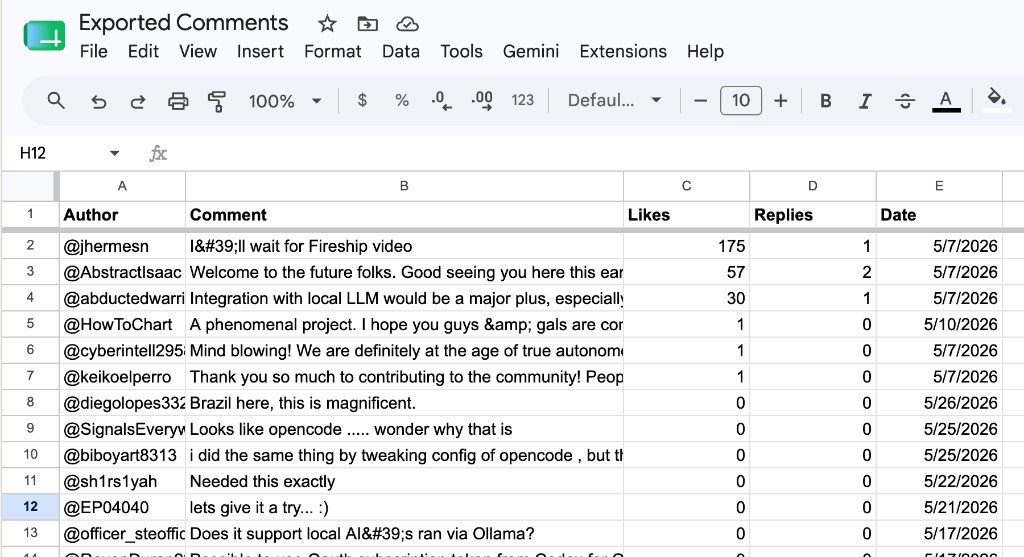
- Click export and download the CSV. Each row is one comment with the author, full comment text, like count, reply count, and publish date.
Each field lands in its own clean column instead of one jumbled cell, so the spreadsheet is ready to sort and filter right away. To export every public video on a channel at once, paste a channel URL or @handle instead of a single video link.
How do you open and clean the data in Excel or Google Sheets?
CSV exports of YouTube comments break in predictable ways, because comments contain commas, line breaks, emojis, and quotation marks. Here's how to open the file without mangling it.
In Google Sheets (most reliable):
- Open a blank sheet, then choose File > Import > Upload and select your CSV.
- Set the separator type to Comma and leave "Convert text to numbers, dates, and formulas" checked only if you want dates parsed. Import into a new sheet.
Google Sheets handles quoted fields with internal commas and newlines correctly, so a comment like Loved it, especially the intro stays in a single cell. See Google's note on importing data into Sheets if a file misbehaves.
In Excel: don't just double-click the file. Use Data > From Text/CSV, set the delimiter to comma and the file origin to UTF-8, then load. Choosing UTF-8 is what keeps emojis and accented names from turning into garbled characters, a common failure documented in Microsoft's text and CSV import guide.
Once it's open, three quick cleanups make the data usable:
- Freeze the header row (View > Freeze) so column labels stay visible while you scroll.
- Trim stray whitespace with
=TRIM(B2)if comment text imported with leading spaces. - Convert the date column to a real date type so you can sort chronologically.
How do you analyze YouTube comments for audience insight?
The fastest way to make sense of an export is to let AI do the reading. Drop the CSV into ChatGPT or Gemini (upload the file, or paste the comment column) and ask it specific questions. Because the data is already structured, a single prompt surfaces what would take hours of scrolling. The use cases worth knowing:
- Run sentiment analysis and filter by positive or negative. Ask the model to tag each comment as positive, negative, or neutral, then show only the negatives. That one move splits "what people loved" from "what to fix" in seconds, instead of you eyeballing thousands of rows.
- Cluster comments into themes so recurring praise, complaints, and feature requests rise to the top instead of staying buried in the noise.
- Extract every question viewers asked into a clean list, ready to become an FAQ or the outline for your next video.
- Mine a competitor's video for unmet needs and complaints, then build something better than what their audience is asking for.
- Spot your superfans and harshest critics by asking who comments most often and how they tend to feel.
- Summarize the whole comment section into a few bullet points when you just need the gist before recording a follow-up.
If you'd rather not run it through a general model yourself, The YouTube Tool's comment analysis groups praise, complaints, and requests for you automatically.
Prefer to stay in the spreadsheet? A few formulas cover the basics. Assume comment text is in column B and likes are in column C:
- Sort by the likes column (largest first) to surface the feedback your audience actively endorsed, often a sharper content signal than the video's own metrics.
- Pull out every question:
=FILTER(B2:B1000, ISNUMBER(SEARCH("?", B2:B1000)))
- Count how often a topic comes up (replace
pricingwith any keyword):
=COUNTIF(B2:B1000, "*pricing*")
- Find your most active commenters with a pivot table: drop the author column into Rows and a count of comments into Values.
One honest limitation: the export captures top-level comments, with a reply count per row but not the full nested reply threads. For most analysis (themes, top feedback, questions) that's exactly what you want, since parent comments carry the signal. If you specifically need to read into back-and-forth discussions, the spreadsheet isn't the right tool for that slice.
FAQ
How do I export YouTube comments to Excel? Export the comments as a CSV from a comment downloader, then in Excel use Data > From Text/CSV, set the delimiter to comma and the encoding to UTF-8, and load. Opening via the import wizard (rather than double-clicking) keeps emojis and special characters intact.
Can I export YouTube comments to Google Sheets? Yes. Download the comments as a CSV, then in Google Sheets choose File > Import > Upload and select comma as the separator. Sheets handles commas and line breaks inside comments correctly, so each comment stays in one cell.
What columns are in the exported file? One row per comment, with columns for author name, full comment text, like count, reply count, and publish date. That structure is ready to sort, filter, and pivot.
Can I export all comments from a video? You can export up to 1,000 top-level comments per video on the free tier, which is the entire comment section for most videos. Replies are summarized as a count per row rather than exported as individual rows.
Why do my exported comments look broken in Excel? Almost always an encoding or delimiter issue. Import with Data > From Text/CSV, choose UTF-8 encoding and a comma delimiter, and the rows, emojis, and accented characters will display correctly.