How to Download YouTube Comments (Free, Step by Step)
Quick answer (TL;DR): The fastest way to download YouTube comments is a free web-based tool: paste the video URL into The YouTube Tool's comment downloader, choose how many comments you want, and click export to get a CSV with every author, comment, like count, and date. No extension, API key, or code required.
There are three real ways to pull comments off a YouTube video: a free online tool, a browser extension, or the YouTube Data API. Only one of them takes under a minute and needs nothing installed. This guide walks through that method step by step, then compares all three honestly so you know exactly which to reach for and what data you'll actually get.
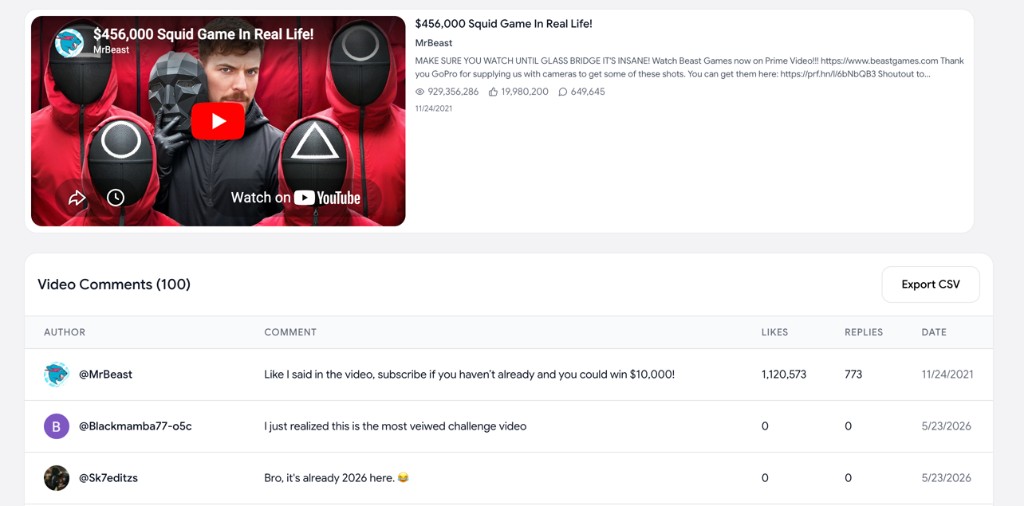
Why download YouTube comments?
Comments are the closest thing YouTube gives you to a free focus group, but the native interface is useless for analysis. You can't sort, search across thousands at once, or pull them into a spreadsheet. Downloading them fixes that. The common reasons people export comments:
- Creators review viewer feedback in bulk to find content ideas, recurring questions, and feature requests.
- Marketers run competitor research, reading what an audience loves or complains about on a rival's videos.
- Researchers and analysts collect comment data for sentiment analysis, trend tracking, or academic work.
- Community managers archive valuable comments before a video is edited, made private, or taken down.
Once the comments are in a CSV, you can sort by likes, filter by keyword, or feed them into an analysis tool, none of which is possible inside YouTube itself.
How to download YouTube comments (free, no extension)
You can export comments from any public video to a spreadsheet in three steps, with nothing to install:
- Paste the video URL. Copy the link from your browser's address bar and drop it into the comment downloader. A full
youtube.com/watch?v=…link, ayoutu.be/…short link, or a Shorts URL all work. - Choose how many comments to pull. Pick 50, 100, 200, 500, or up to 1,000 top-level comments from the dropdown.
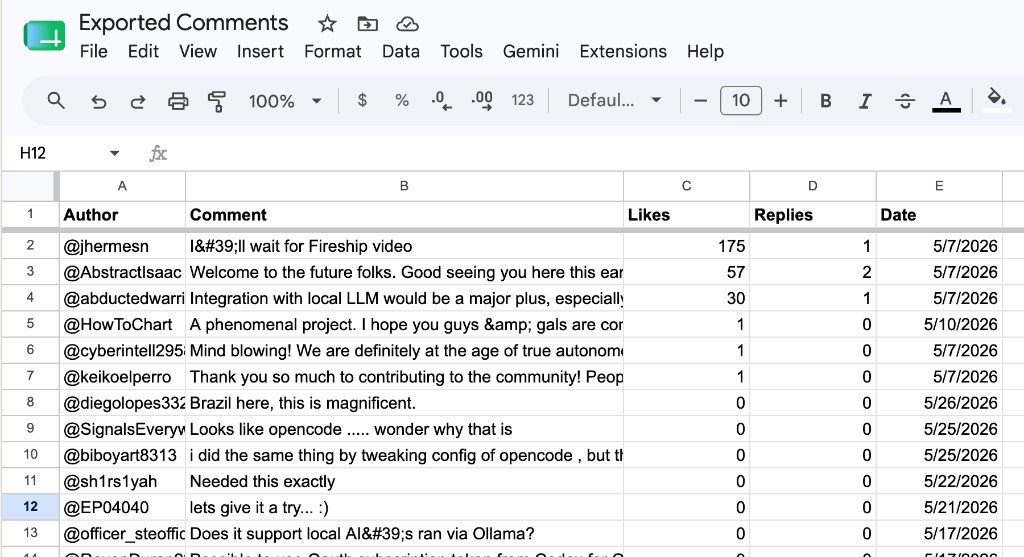
- Export the CSV. Click the button, wait a few seconds, and download a clean spreadsheet of author name, comment text, like count, reply count, and date, ready to open in Excel, Google Sheets, or Notion.
Because the tool pulls data through the official YouTube API rather than scraping the page, you get structured, reliable fields instead of a messy copy-paste, and there's no risk from a shady extension or script.
How to download comments from a single video
For one video, the single-URL flow above is all you need. A few details worth knowing:
- What counts as "all" comments. The free tier returns up to 1,000 top-level comments per video, sorted by top (highest engagement) by default. For most videos that's the entire comment section; for a viral video with tens of thousands of comments, it's the most relevant slice.
- What's in each row. Author, full comment text (emojis preserved), like count, reply count, and the original publish date, with one comment per row.
- What you can't grab. Private videos, unlisted videos, and videos with comments disabled can't be exported. That's a YouTube restriction, not a tool limit.
How many comments can you download, and what about replies?
This is where most "download every comment including replies" promises get fuzzy, so here's the honest version.
The export is built around top-level comments. Each row includes a reply count so you can see which threads sparked the most discussion, but the CSV captures the parent comments rather than every nested reply. If your goal is to read into the back-and-forth of specific threads or measure sentiment across replies, run the file through the AI YouTube comment analysis tool instead of trying to export raw reply trees.
For volume:
| Scope | Free tier | Notes |
|---|---|---|
| Single video | Up to 1,000 top-level comments | Choose 50–1,000 from the dropdown |
| Whole channel | Up to 100 videos × up to 100 comments each | Paste a channel URL or @handle |
To download comments across an entire channel, paste a channel URL (e.g. youtube.com/@mkbhd) or an @handle instead of a single video, and the downloader walks every public video on the channel. Higher caps (more videos and more comments per video) are available on the premium plan.
Other ways to download YouTube comments (compared)
The web tool isn't the only option, it's just the fastest. Here's how the realistic methods stack up:
| Method | Setup required | Best for | Catch |
|---|---|---|---|
| Free web tool | None | One-off and channel exports, no technical skill | Top-level comments; free-tier caps |
| Browser extension | Install + your own YouTube Data API key | Grabbing comments while already on the page | Most require an API key and have quota limits |
| YouTube Data API | Google Cloud project, API key, code | Developers building automated pipelines | ~10,000 quota units/day by default; requires programming |
yt-dlp (CLI) | Install the command-line tool | Power users comfortable in a terminal | Outputs raw JSON; no built-in spreadsheet export |
The takeaway: if you write code and need a scheduled, high-volume pipeline, the YouTube Data API is the right tool, but you'll manage credentials and a daily quota. For a one-time export or a quick competitor pull, a no-code web tool gets you to a spreadsheet far faster, and unlike most extensions it doesn't ask you to register for an API key first.
What can you do with the comment data?
A CSV of comments is the input, not the output. Once you have it:
- Sort by likes to surface the comments the audience actually endorsed, often a better content signal than the video's own description.
- Filter for questions (search the text column for
?) to build an FAQ or your next video's outline straight from viewer demand. - Drop the CSV into your preferred AI tool. Upload or paste the file into ChatGPT, Claude, Gemini, or whatever LLM you use, then ask it to run sentiment analysis and cluster the comments into topics so you can see what people are actually saying at a glance. This cuts both ways: use it for competitive research (mine a rival's comments for unmet needs and complaints, then build a better product) or on your own video and channel comments (find what to fix and improve in the product you already ship).
- Run a built-in analysis instead with the AI YouTube comment analysis tool, which clusters praise, complaints, and requests for you without leaving the workflow.
- Track changes over time by exporting the same channel periodically and comparing.
If your next step is specifically getting the data into Excel or Google Sheets cleanly, see our companion guide on how to export YouTube comments to a spreadsheet.
FAQ
How do I download all comments from a YouTube video? Paste the video URL into a free comment downloader, choose how many comments to pull (up to 1,000 top-level on the free tier), and click export to save them as a CSV. No extension or code needed.
Can I download YouTube comments without an API key? Yes. A web-based comment downloader handles the API call for you, so you don't need your own YouTube Data API key. Most browser extensions, by contrast, require you to register for a free key in Google Cloud first.
What format are the comments downloaded in? A CSV (comma-separated values) file with one comment per row and columns for author, comment text, likes, reply count, and date. CSV opens directly in Excel, Google Sheets, and Notion.
Can I download comments from any video? Any public video, including Shorts, livestream replays, podcasts, and tutorials. Private, unlisted, and comment-disabled videos can't be exported, which is a YouTube restriction.
Is it legal to download YouTube comments? Downloading publicly visible comments for research or analysis is generally fine, especially when the data comes through the official YouTube API. Respect YouTube's Terms of Service and privacy rules, and don't republish individuals' comments out of context or use the data to harass anyone.
Can I download comments from an entire channel at once?
Yes. Paste a channel URL or @handle instead of a single video; the free tier pulls comments from up to 100 videos at a time, with higher limits on the premium plan.