How to Create YouTube Thumbnails with AI (Tools & Workflow)
Most creators still treat custom thumbnails like a design brief: hire someone, wait days for a first draft, then burn a week on revision rounds. "Can you make the text bigger?" "Try a different expression." "Actually, go back to version two." A good freelance thumbnail designer often charges $200+ per cover, and the back-and-forth still eats your upload schedule. That headache made sense when AI could only paint abstract backgrounds. It does not match what the tools do today.
Current image models are now as good as professional thumbnail designers on the tasks that actually move CTR: swapping headline text, placing bold type that reads at phone size, and rendering faces that look like real people instead of plastic stock photos. The best generators are trained on huge libraries of viral packaging patterns. They know what a MrBeast-style hook looks like, how Magnets Media frames a cinematic still, and which color contrasts survive YouTube's sidebar at 168 pixels wide. For a solo creator or a small team, AI thumbnails are a real production path, not a gimmick.
This guide walks through the full workflow: how to collect references, how to pick and use an AI generator, how to export at the right YouTube thumbnail size, and how to schedule native A/B tests inside YouTube Studio. For which app to use, see our separate ranking: 7 best AI thumbnail makers for YouTube.
How do you create a YouTube thumbnail with AI?
Treat thumbnail creation like a short production pipeline, not a single prompt. We call it the Reference → Generate → Variate → Validate loop. Four stages, each with a clear output:
| Stage | What you do | What you leave with |
|---|---|---|
| 1. Reference | Brainstorm hooks and download winning thumbnails from your niche | A swipe file of layouts + a one-line angle per video |
| 2. Generate | Pick an AI tool, train likeness if needed, run prompts against references | 1–3 near-final covers at 1280×720 |
| 3. Variate | Produce meaningfully different versions (expression, text, color, crop) | Three upload-ready JPGs under 2 MB |
| 4. Validate | Launch YouTube Test & Compare and let watch time pick the winner | Data on what your audience actually clicks and keeps watching |
Skip Reference and you guess layouts from memory. Skip Variate and you have nothing to test. Skip Validate and you never learn whether the AI output beat your old cover.
Stage 1: Come up with ideas and collect references
Before you open any generator, answer two questions in writing: What is the one emotion this video should trigger? and Which thumbnail in my niche already proved that emotion works?
Then build a reference folder:
- Search your topic on YouTube and note the top 5–10 videos with the strongest packaging (high views relative to channel size, or covers you would click yourself). Creator Youri van Hofwegen starts the same way: before he prompts anything, he studies what already wins in the niche (for example, shark-diving videos from MrBeast and Mark Rober that cleared 100M+ views) and writes a one-line scene he wants to recreate with his own face in the frame.
- Paste each video URL into the free thumbnail downloader and save the Max HD (1280×720) file. You can also grab an entire channel's thumbnails in one batch, use a YouTube thumbnail grabber for side-by-side method comparisons, or pull CDN sizes manually with the get YouTube thumbnail URL guide.
- Label each file with what you are stealing from it: "face left + yellow text," "before/after split," "single object on neon background."
Upload those images into your AI tool as style references, not as files you will republish. Studying layout patterns is normal; copying someone else's thumbnail pixel-for-pixel is copyright risk. Your goal is an original cover informed by patterns that already work.
Stage 2: Pick an AI tool and generate your first draft
Every serious AI thumbnail workflow splits into two paths:
- Prompt from scratch: describe the scene, emotion, and headline text in plain language.
- Recreate from a URL: paste a watch link and let the tool rebuild a proven layout around your content.
Both belong in Stage 2. Prompting is for original ideas; recreate is for formats YouTube has already validated.
Pick a generator that matches your bottleneck (likeness, text in-image, all-in-one export, free tier). Our 7 best AI thumbnail makers list ranks Higgsfield, Pikzels, Ideogram, ChatGPT, and others with pricing and honest tradeoffs so you do not have to trial every app yourself.
Train a persona (3–20 clear face photos) before your first generation if the thumbnail needs to look like you. Dedicated YouTube tools support face cutouts and persona-style training; without it, you get a convincing stranger.
Prompting habits that actually work (from long-form tests by creators including Youri van Hofwegen's Pikzels walkthrough):
- Set the scene first: location, who is in frame, and the emotion on their face ("two men underwater in the ocean, fear on their faces, shark behind them").
- Name the video angle: tie the prompt to a title or hook so the model knows the niche ("thumbnail for: shark diving with Cristiano Ronaldo").
- Add headline text inside the prompt when you want type in the image:
add the text SHARK DIVING in a bold bright yellow font at the top. - Keep it short and non-contradictory. A prompt that mixes "terrified men, happy shark, crying UFO, treasure chest" confuses the model and produces mush.
- Use edit mode instead of starting over. Phrases like "make the person happy instead of scared, keep the rest the same" change one variable without losing a strong base image.
- Hit redo on the same prompt if the first export is flat. The second generation is often dramatically better (brighter color, clearer ocean, sharper subject) without any prompt change.
If on-image text keeps garbling, generate the visual asset only and add typography in Canva or YouTube Studio. Many high-CTR channels generate the photo in AI and set the final headline in a design tool for pixel-perfect control.
Face swap when the scene is right but the person is wrong: upload your photo and swap it onto the generated body. This works best when the base character already resembles you (similar build, hair, angle). Swapping onto a totally different face type usually fails.
In FORGET Photoshop & Canva! This AI THUMBNAIL Maker does it All!, Youri runs the full loop live: niche research → prompt-to-thumbnail → redo → edit → text overlay → face swap → recreate-from-URL with adjustable inspiration weight. The recreate path is especially useful in Stage 1 (Reference): paste a high-performing watch link, pick high / medium / low inspiration (how closely to copy the layout), and regenerate until the format fits your video without cloning every pixel.
Export only when the file meets YouTube's upload spec: 1280×720, 16:9, under 2 MB. Regenerate at the correct ratio instead of cropping a square output. Expect 2–3 generations on text-heavy covers; that is normal, not a sign the tool failed.
Stage 3: Create a batch of variations
One thumbnail is a draft. Three thumbnails is a test.
Generate versions that differ in one major variable each, not random resamples of the same idea:
- Variant A (safe): Closest match to your reference layout, your face, your hook text.
- Variant B (expression or color): Same layout, different facial expression or background palette.
- Variant C (bold swing): Different text hook, crop, or visual metaphor.
Dedicated tools make this fast: use your generator's variant or batch mode, or run three separate prompts. Aim for covers that look obviously different at a glance, not three nearly identical faces with slightly different lighting.
Shrink each export to ~168 px wide on your screen before upload. If the headline disappears at sidebar size, regenerate with larger, bolder text.
Stage 4: Schedule Test & Compare inside YouTube Studio
YouTube's built-in Test & Compare tool splits real traffic across up to three thumbnails (or titles, or both) and picks the winner by watch time share, not raw CTR alone. A cover that earns slightly fewer clicks but keeps people watching can still win. That is the behavior you want.
Eligibility: The feature is available on standard long-form uploads when advanced features are enabled. It does not run on Shorts, Premieres, private videos, or content made for kids.
For a video you are uploading now:
- In YouTube Studio, click Create → Upload videos.
- During the upload flow, open the Thumbnail section.
- Click Test & compare (or A/B testing in some Studio layouts).
- Choose Thumbnail only if you only want to test covers (recommended when isolating variables).
- Upload up to three JPG/PNG files, each at 1280×720 minimum. If any variant is below 720p tall, YouTube downscales all experiment thumbnails to 480p.
- Click Save and finish publishing the video.
For a video that is already live:
- Open YouTube Studio → Content.
- Click the video title to open Video details.
- Scroll to Thumbnail → Test & compare (desktop only; mobile Studio does not expose this).
- Upload your second and third variants alongside the current cover.
- Click Done, then Save on the video page.
Rules while the test runs:
- Do not edit the title, description, or any thumbnail mid-test. YouTube cancels the experiment if you change metadata during the run.
- Let the test run up to two weeks. YouTube declares a winner when it has enough data; ending early on a 48-hour lead produces noisy results.
- If the result is Inconclusive, YouTube keeps the first thumbnail you uploaded. Try bolder differences on the next round.
When the test finishes, the winning thumbnail is applied automatically. Note why it won (face size, text color, less clutter) and feed that into your next Reference folder.
Where should you pick an AI thumbnail tool?
This article is the workflow. Tool-by-tool rankings, pricing, and who each app is for live in 7 best AI thumbnail makers for YouTube. Read that listicle after Stage 1 (Reference) so you know what to optimize for: likeness, in-image text, or one-click export at 1280×720.
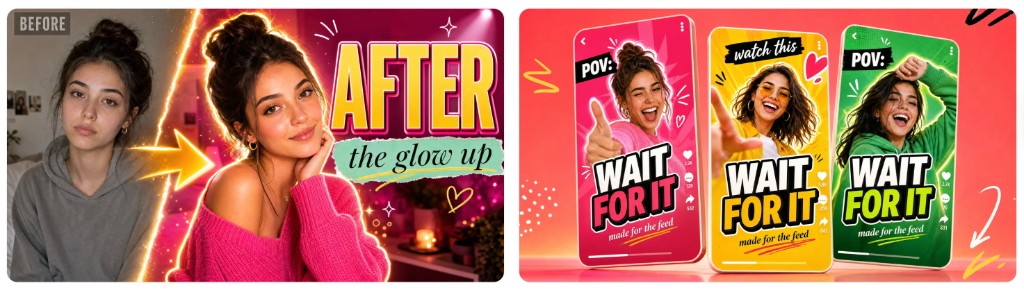
If you want a single starting point before you compare the full field, Higgsfield's AI Thumbnail Generator covers the full pipeline (reference upload, face cutout, bold text, variant sets, platform-sized export). The examples below show the kind of output you can expect:
For side-by-side scores on Pikzels, ChatGPT, VidIQ, Thumbnail.ai, Canva, and the rest, use the listicle. This post stays focused on the process that works no matter which app you choose.
What should your AI thumbnail prompt include?
| Element | What to specify | Example |
|---|---|---|
| Subject | Main focus | "Creator waist-deep in murky green water, holding a torch" |
| Emotion | Click-driving feeling | "Shocked expression, mouth open, wide eyes" |
| Composition | Placement | "Face on right third; headline text upper left" |
| Text overlay | Exact words + style | "Bold yellow text: LOST, white outline, readable when small" |
| Technical specs | YouTube requirements | "16:9 aspect ratio, 1280×720, high contrast, YouTube thumbnail style" |
Put headline text in quotes so the model treats it as literal copy, not a concept. Keep on-image text to three words or fewer when possible; long sentences garble at small sizes.
Prompts to avoid:
| Bad habit | Why it fails | Better move |
|---|---|---|
| "Make a thumbnail for a shark diving video" | Too vague; model guesses the layout | Describe scene, faces, props, and emotion explicitly |
| Too many conflicting subjects | Model averages them into noise | One hero subject, one hook, one emotion |
| Skipping the action or format | You get a static portrait instead of a click moment | Name the action: "swimming toward camera," "holding object up," "split before/after" |
What else is in the YouTube thumbnails cluster?
- YouTube thumbnail downloader — Pillar: save six sizes or batch-grab a channel for your reference folder.
- YouTube thumbnail grabber — Grabber vs downloader terminology; tool vs URL vs extension.
- How to get a YouTube thumbnail URL — Manual
img.youtube.com/vi/…pattern when you need a hotlink. - YouTube thumbnail size — 1280×720 upload spec and safe zones (Stage 4 export).
- YouTube Shorts thumbnail download — Shorts cover files when your references are vertical.
- Best AI thumbnail makers — Tool listicle this workflow points to in Stage 2.