How to Save a LinkedIn Video (to LinkedIn or Your Device)
Quick answer (TL;DR): "Saving" a LinkedIn video means one of two things. To bookmark it on LinkedIn, click the ⋯ on the post and choose Save; you'll find it later under Saved posts. To save the video file to your phone or computer, copy the post link, paste it into our free LinkedIn video downloader, and click Download Video. The MP4 saves to your Downloads folder.
LinkedIn's Save button doesn't download anything. It adds the post to a list inside your account, so you can come back and watch it on LinkedIn. That's handy, but if you want the video offline, in your camera roll, or in a presentation, you need the actual file. This guide covers both.
Option 1: Save a LinkedIn video post with LinkedIn's Save button
Use this when you just want to rewatch the video on LinkedIn later. You need to be signed in.
On a computer:
- Find the post with the video in your feed (or open the post itself).
- Click the ⋯ (More) icon in the post's top-right corner.
- Click Save.
A banner briefly appears in the lower left with a View Saved Posts link (LinkedIn Help).
In the LinkedIn app (iPhone or Android):
- Tap the ⋯ (More) icon at the top right of the post.
- Tap Save.
A banner with a View Saved Posts link appears at the top or bottom of the screen (LinkedIn Help).
You can save posts and articles, but not every feed update: LinkedIn doesn't let you save job recommendations, follow suggestions, or work anniversary and profile-change updates.
Where to find saved LinkedIn videos
LinkedIn keeps every saved post, video or not, in one list.
- On a computer: on your LinkedIn homepage, click Saved items in the left column, then Saved posts and articles (LinkedIn Help). If you're signed in, you can also go straight to
linkedin.com/my-items/saved-posts/. - In the app: tap your profile picture, then Saved posts (LinkedIn Help).
To remove a post from the list, click or tap the ⋯ on it and choose Unsave.
Keep in mind what a saved post is: a bookmark to the original. The video still plays from LinkedIn, so you need an internet connection and your account to watch it. If the author deletes the post, it's gone from your saved list too.
Option 2: Save a LinkedIn video to your phone or computer
To keep the video itself as a file, use a downloader. It works for public posts with a video uploaded to LinkedIn, on any device, with no app or sign-up.
-
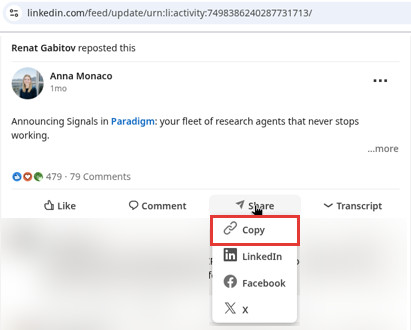
Copy the post link. On a computer, click the ⋯ on the post and choose Copy link to post. If you're not signed in, click Share under the post, then Copy. In the LinkedIn app, tap Share, then Copy link.
-
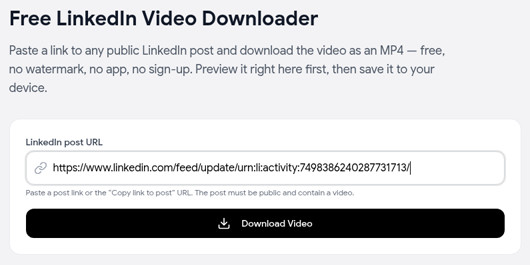
Paste it into the LinkedIn video downloader and click Download Video.
-
Let the MP4 save. The download starts on its own. A preview of the post appears below the form so you can check it's the right video, and Download again gets you a second copy.
You get one MP4 with sound and no watermark. On a computer, it lands in your Downloads folder.
For step-by-step instructions on iPhone, Android, Windows, and Mac (including how to move the video into Photos on an iPhone), see our full guide on how to download a LinkedIn video. If you're comparing tools, see the best LinkedIn video downloaders.
How to save a LinkedIn video on mobile
The two options work the same way on a phone, just with taps:
- Bookmark it: in the LinkedIn app, tap ⋯ on the post, then Save. Find it later by tapping your profile picture, then Saved posts.
- Save the file: in the app, tap Share, then Copy link. Open Safari (iPhone) or Chrome (Android), go to the LinkedIn video downloader, paste the link, and tap Download Video. On iPhone the file goes to the Files app under Downloads; on Android it goes to your Downloads folder.
The LinkedIn app itself has no option to save a video to your camera roll, so the file route always goes through the browser.
Which one should you use?
| You want to… | Use |
|---|---|
| Rewatch a video on LinkedIn later | LinkedIn's Save |
| Keep the video if the author deletes the post | The downloader |
| Watch offline, on a plane or without LinkedIn | The downloader |
| Put the clip in a presentation, edit, or archive it | The downloader (and ask the creator before reusing someone else's video) |
| Keep a list of posts to come back to | LinkedIn's Save |
FAQ
Does saving a LinkedIn post download the video? No. Save only bookmarks the post in your account. To get the video file, use the LinkedIn video downloader.
Can you save a video from LinkedIn to your camera roll? Yes, but not from inside the app. Download the MP4 in Safari, open it in the Files app, tap Share, then Save Video. On Android, the file in your Downloads folder shows up in most gallery apps.
Why can't I find my saved LinkedIn videos? Saved videos are mixed in with all your other saved posts and articles under Saved posts. If one is missing, the author may have deleted the post.
Can I save a LinkedIn video without an account? You can't use LinkedIn's Save without signing in. You can still save the file: on a public post, click Share, then Copy, and paste the link into the downloader. It never asks for your LinkedIn login.
Why won't a LinkedIn video save to my device? Usually because the post isn't public, it was deleted, or the link you copied points to a profile or company page instead of the post. Videos shared as YouTube links live on YouTube, not LinkedIn.
Can I save all my own LinkedIn videos at once? Not as files in one go. LinkedIn's Download your data export lists links to the videos you've shared, not the videos themselves (LinkedIn Help). Our download guide explains how it works.
Related guides
- How to download a LinkedIn video: full device-by-device steps, plus a no-tool method with browser dev tools.
- Best LinkedIn video downloaders: free tools compared.