How to Download a LinkedIn Video (Any Device, Free)
Quick answer (TL;DR): To download a LinkedIn video, open the post, choose Copy link to post from the ⋯ menu (or Share → Copy link in the app), paste it into our free LinkedIn video downloader, and click Download Video. The MP4 saves to your Downloads folder. It works on iPhone, Android, Windows, and Mac, with no app or sign-up. The post has to be public and contain a video uploaded to LinkedIn.
LinkedIn has no download button for videos, on any device. The Save option in a post's menu only bookmarks the post inside your LinkedIn account; it doesn't put a file on your phone or computer. To get an actual video file, you need the post's link and one of the methods below.
We tested this guide on a real public LinkedIn video post in October 2026, so the steps below come from what actually happened, not from a spec sheet. Still choosing a tool? We ran the same post through 8 of them in the best LinkedIn video downloaders.
Can you download a video from LinkedIn?
Yes, if the video was uploaded straight to a public LinkedIn post. LinkedIn's public video player streams it as an ordinary MP4 file from LinkedIn's own video servers. A downloader reads the post's public page, finds that file, and saves it to your device instead of just playing it.
You can't download:
- Posts you can only see when logged in, such as posts shared with connections only.
- Deleted posts. Once the post is gone, so is the video.
- YouTube or Vimeo links shared in a post. Those videos live on YouTube or Vimeo, not LinkedIn. For YouTube, see how to download YouTube videos.
- Images, documents, and carousels. There's no video file to save.
- LinkedIn Learning courses. They're a separate paid product, not public posts.
How to download a LinkedIn video (fastest way, any device)
An online downloader is the quickest method, and it's the same on every device:
-
Open the LinkedIn post that has the video.
-
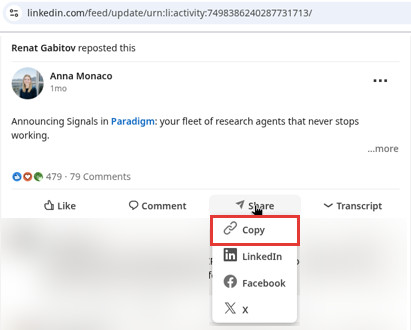
Copy the post link. On a computer, click the ⋯ in the post's top-right corner and choose Copy link to post. If you're not signed in to LinkedIn, that option isn't there: click Share under the post and choose Copy instead. In the LinkedIn app, tap Share, then Copy link.
-
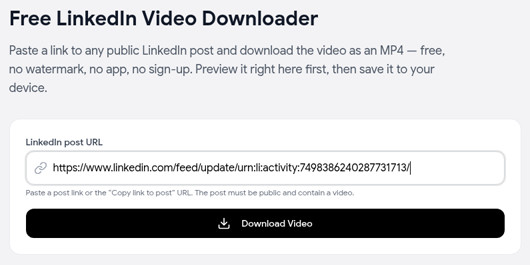
Paste it into the LinkedIn video downloader and click Download Video.
-
Let the MP4 save. The download starts on its own as soon as the tool finds the video. There's no second button to click.
-
Check the preview. The post appears below the form in LinkedIn's own player, so you can confirm it's the right video. Use Download again if you need a second copy.
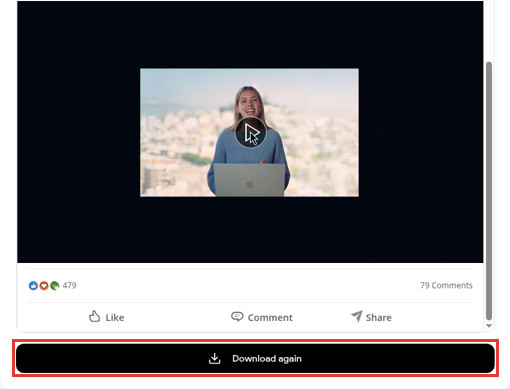
You get one MP4 with sound and no watermark, at the quality LinkedIn's public player serves for that post.
How do you download a LinkedIn video on iPhone?
Use Safari. Dedicated downloader apps come and go, and you don't need one.
- In the LinkedIn app, tap Share under the post, then Copy link.
- Open Safari, go to the LinkedIn video downloader, paste the link, and tap Download Video.
- Tap the Downloads button next to Safari's address bar to see the file. Downloads are stored in the Files app under iCloud Drive → Downloads (Apple).
- To move the video into Photos, open it in Files, tap Share, then Save Video.
If the video opens in a new tab instead of downloading, tap Share in Safari and choose Save to Files (or Save Video, if it's offered).
How do you download a LinkedIn video on Android?
- In the LinkedIn app, tap Share, then Copy link.
- Open Chrome, go to the LinkedIn video downloader, paste the link, and tap Download Video.
- The MP4 goes to your Downloads folder. Open Files by Google and tap Downloads to find it (Google). Most gallery apps also show it as a video.
How do you download a LinkedIn video on Windows or Mac?
-
On linkedin.com, click the ⋯ on the post and choose Copy link to post. Not signed in? Click Share under the post, then Copy.
-
Paste the link into the LinkedIn video downloader and click Download Video.
-
The download starts automatically, and the file lands in your browser's Downloads folder. Chrome shows it in the downloads bubble at the top right; press
Ctrl+J(Windows) orOption+Cmd+L(Mac) to open the full downloads list.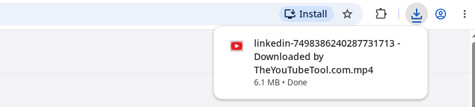
If the browser can't save the file automatically, the tool opens the video in a new tab instead. Right-click it and choose Save video as….
How to download a video from LinkedIn without a tool (browser dev tools)
If you'd rather not paste a link into any website, you can pull the MP4 yourself on a computer. It takes a couple of minutes, and it only works for public posts.
-
Get the post ID. Copy the post link. The long number after
activity:(orugcPost:) is the ID. -
Open the post's public embed page. Paste
https://www.linkedin.com/embed/feed/update/urn:li:activity:followed by the ID into your address bar. If you're working from augcPostlink, useurn:li:ugcPost:instead. This is the same page LinkedIn uses when a post is embedded on another website. -
Open developer tools. Press
F12(Windows) orOption+Cmd+I(Mac), go to the Network tab, and click the Media filter. -
Play the video and find the file. A request to
dms.licdn.comappears. Click it and look at the Headers tab: the Request URL hasmp4and the resolution in its path (in our test,mp4-640p-30fp-crf28), and the Content-Type isvideo/mp4. Don't look for a link ending in.mp4; LinkedIn's video links don't, and they carry a long string of parameters after the?. -
Open and save it. Right-click the request and choose Copy → Copy URL (copy the whole thing, parameters included), open it in a new tab, then right-click the video and choose Save video as….
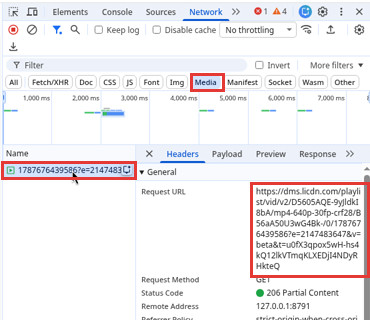
Alternatively, stay on the Elements tab, press Ctrl+F / Cmd+F, and search for dms.licdn.com: the video's data-sources attribute lists the same kind of links. Either way, it's slower than pasting the link into a downloader, and it doesn't work on phones. It's useful mostly as a fallback, or to see exactly where the file comes from.
How do you download your own LinkedIn videos?
LinkedIn's own option is Download your data, which exports a copy of your account. Here's how it works:
- On a computer, click Me at the top of your LinkedIn homepage and select Settings & Privacy.
- Click Data privacy in the left menu.
- Under How LinkedIn uses your data, click Download your data.
- Choose the larger archive or specific categories of data, then click Request archive.
- Wait for LinkedIn's email, then use the link in it to download your data as a ZIP file.
LinkedIn says specific categories usually arrive by email within minutes, the larger archive within 24 hours, and the download link stays live for 72 hours. The feature isn't available on mobile (LinkedIn Help).
Be clear about what you're getting, though. The archive is all your account data (profile, connections, messages, and more), not just your videos, and it takes a long time to arrive. Even then, the videos aren't in it as ready-to-play files: the Rich Media file lists links to the photos, videos, and documents you've shared. If you just want one video, it doesn't make sense. Paste the post link into the LinkedIn video downloader instead.
Where it's worth it is when you want to download all your posts. The Shares file lists every post you've shared, with its date, link, text, and visibility, which makes it a good full backup of your LinkedIn content.
FAQ
Does LinkedIn notify someone when you download their video? No. Our downloader fetches the post's public page from our server, not through your LinkedIn account, so the download isn't tied to your profile, and we know of no LinkedIn feature that reports downloads to creators.
Can I download a LinkedIn video without logging in? Yes, for public posts. Our LinkedIn video downloader never asks for your LinkedIn login. You only need to be logged in to LinkedIn to find and copy the post link.
Why won't a LinkedIn video download? The usual reasons: the link isn't a post link (it's a profile, company page, or short link), the post isn't public, the post was deleted, or the "video" is really a YouTube link, document, or image. Open the post itself, use Copy link to post, and try again.
Can I save a LinkedIn video to my camera roll? Yes. On iPhone, download it in Safari, open it in Files, then Share → Save Video. On Android, the file in Downloads already shows up in most gallery apps.
Can I download just the audio? Not with our LinkedIn tool, which saves the MP4 only. You can convert the MP4 to MP3 with any audio editor afterwards.
Does "Save" on LinkedIn download the video? No. Save adds the post to My items → Saved posts inside LinkedIn. You still need an internet connection and your account to watch it, and it disappears if the author deletes the post. More on both kinds of saving in how to save a LinkedIn video.
Related guides
- Best LinkedIn video downloaders: 8 free tools tested on the same post.
- Taplio LinkedIn video downloader alternative: what to use when Taplio's daily limit runs out.
- How to download a Twitter video: the same copy-link-and-paste method, for X.
- Free X video downloader: quality limits and what you can't download from X.
- How to download YouTube videos: for YouTube videos shared on LinkedIn.