How to Turn Off YouTube's AI Summary (2026)
Quick answer (TL;DR): You can't turn off YouTube's AI summaries with a setting. As of October 10, 2026, there's no switch for viewers in YouTube's settings on the web or in the app. You can hide them on a computer with the free Control Panel for YouTube extension: turn on Hide AI summaries, and Hide Ask button if you want that gone too. You can also block them with a uBlock Origin filter. If you joined a YouTube Premium experiment, you can leave it at youtube.com/new.
Is there a setting to turn off the AI summary on YouTube?
No. YouTube adds AI features as experiments and gradual rollouts: some accounts get a feature and others don't, and the set changes over time (YouTube Help). That's why a friend may not see the summary you do, and why it can vanish and come back without you changing anything.
Reinstalling the app or clearing your cache won't add a switch. The fixes below hide the summaries on your screen; they don't stop YouTube from making them.
What YouTube's AI summary looks like
You may run into three different AI features:
- AI video summaries: a short block marked with Gemini's sparkle icon. It shows up in search results, under the video or in the description.
- The Ask button: an AI chat below the video that answers questions about it, including "summarize this." It's available on select videos, in select countries (YouTube Help).
- AI live chat summaries: on live streams, new viewers may see an AI summary of what the chat has been talking about (YouTube Help).
How to hide YouTube's AI summary on a computer
Option 1: Control Panel for YouTube (easiest)
This free extension for Chrome and Firefox (100,000+ users on the Chrome Web Store) adds the options YouTube doesn't have. The Firefox version also works in Firefox for Android.
- Install Control Panel for YouTube from the Chrome Web Store or Firefox Add-ons.
- Open the extension's options.
- Turn on Hide AI summaries. To remove the AI chat too, turn on Hide Ask button.
- Refresh YouTube.
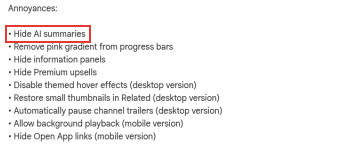
The option hides AI summaries in search results, under videos and in video descriptions on desktop, plus the summary block on YouTube's mobile site.
Option 2: A uBlock Origin filter
If you already use uBlock Origin, you can hide the summaries without another extension. Open uBlock's dashboard, go to My filters, paste these two lines and click Apply changes:
www.youtube.com###expandable-metadata:has(video-summary-content-view-model)
www.youtube.com###video-summary
These lines come from yt-neuter, a public filter list for YouTube clutter on GitHub. If YouTube changes its page code and a summary comes back, use uBlock's element picker on it and confirm the rule it suggests.
How to turn off the AI summary on iPhone and Android
The official YouTube app has no option to hide AI summaries and doesn't support extensions. Your options:
- Android: use YouTube in Firefox for Android with Control Panel for YouTube installed, as above.
- iPhone and iPad: Control Panel for YouTube is also sold as a Safari extension in the App Store ($3.99). It works when you watch YouTube in Safari, not in the YouTube app.
- Modified YouTube apps (like ReVanced on Android) can hide the summary, but they're unofficial, need repatching when YouTube updates, and aren't something we recommend.
If you joined a YouTube Premium experiment, leave it
Premium members can try experimental features at youtube.com/new. If you switched on an AI experiment there, you can switch it off (YouTube Help):
- In the YouTube app, tap your profile picture, then Settings and Try experimental features. On a computer, go to youtube.com/new.
- Find the experiment you joined. Joined experiments show a Turn off button.
- Tap Turn off.
This only covers experiments you joined yourself. If you didn't join an AI experiment there, there's nothing to turn off on that page.
How to turn off AI live chat summaries (for creators)
This is the one AI summary YouTube lets you switch off, and only for streams on your own channel. In the Live Control Room, open the Customization tab and turn off live chat summary. Creators and moderators can also turn it off per stream in the chat moderation settings on mobile (YouTube Help). Viewers can't turn it off.
Want a summary, just not YouTube's?
Some people turn off YouTube's summary because they can't control it: they don't choose when it appears, how long it is or what it focuses on. If you'd still like summaries on your own terms, paste any video link into our free YouTube video summarizer. It works on any video with captions, needs no account, and lets you pick from five formats: bullet points, an executive summary, thematic analysis, timestamps or Q&A. See how to summarize a YouTube video for other ways.
FAQ
Why can't I turn off the AI summary on YouTube? YouTube hasn't added a setting for it. AI summaries are part of experiments and rollouts that YouTube controls per account.
Does YouTube Premium remove AI summaries? No. Premium removes ads, but it doesn't add a switch for AI summaries. It does let you leave experiments you joined at youtube.com/new.
Can I turn off the Ask button on YouTube? Not in YouTube's settings. On a computer, Control Panel for YouTube's Hide Ask button option hides it.
Can creators stop YouTube from making AI summaries of their videos? YouTube hasn't documented a YouTube Studio setting for video summaries. Creators can only turn off AI live chat summaries on their streams.
Why did the AI summary disappear on its own? Because of how rollouts work: your account can move in or out of a test without notice. If it's gone, you didn't change anything, and it may come back.
Related guides
- How to summarize a YouTube video: three free ways, including YouTube's own Ask button.
- Free YouTube video summarizer: what's really free and what the catches are.
- YouTube transcript tool: read the whole video as text instead of a summary.