How to Summarize a YouTube Video (Free, 3 Ways)
Quick answer (TL;DR): The fastest free way to summarize a YouTube video is to copy its link, paste it into our AI YouTube video summarizer, pick a format and click Get Summary. You'll have a summary in seconds, with no account. You can also click Ask under the video on YouTube and ask for a summary, if your account has it. Or you can copy the video's transcript into ChatGPT, Gemini or Claude and ask for one.
All three methods do the same thing under the hood: they read what's said in the video (its transcript) and shorten it with AI. The difference is how much control you get over the summary, and what you need to set up first.
| Method | Best for | What you need | Format control |
|---|---|---|---|
| 1. AI summarizer | A structured summary right now | Just the video link | 5 fixed formats |
| 2. YouTube's Ask button | A quick gist of the video you're watching | A signed-in YouTube account, in a supported country, on a supported video | Whatever you ask, in a chat |
| 3. Transcript + chatbot | A custom summary for a specific purpose | The transcript (ChatGPT and Gemini worked without an account in our test) | Total, through your prompt |
Way 1: Summarize a YouTube video with an AI summarizer
This is the quickest route: paste a link and get a finished summary.
-
Copy the video link. On a computer, copy the URL from the address bar. In the YouTube app, tap Share, then Copy link.
-
Paste it into the YouTube video summarizer. It accepts
youtube.com/watch?v=…andyoutu.be/…links.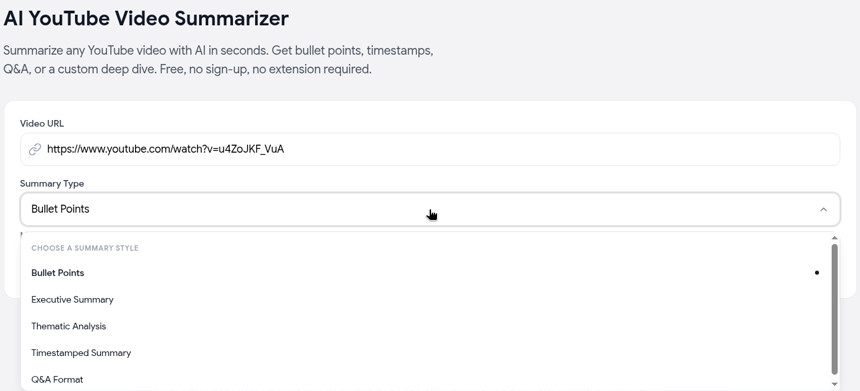
-
Pick a summary type:
- Bullet Points: the main ideas grouped by topic, with short quotes and the time each was said.
- Executive Summary: a short overview and the key takeaways.
- Thematic Analysis: the big themes and how they connect.
- Timestamped Summary: what happens when, in order.
- Q&A Format: the video turned into questions and answers, which is handy for studying.
-
Click Get Summary. The video's details and its transcript load first, then the summary writes itself in on the right.
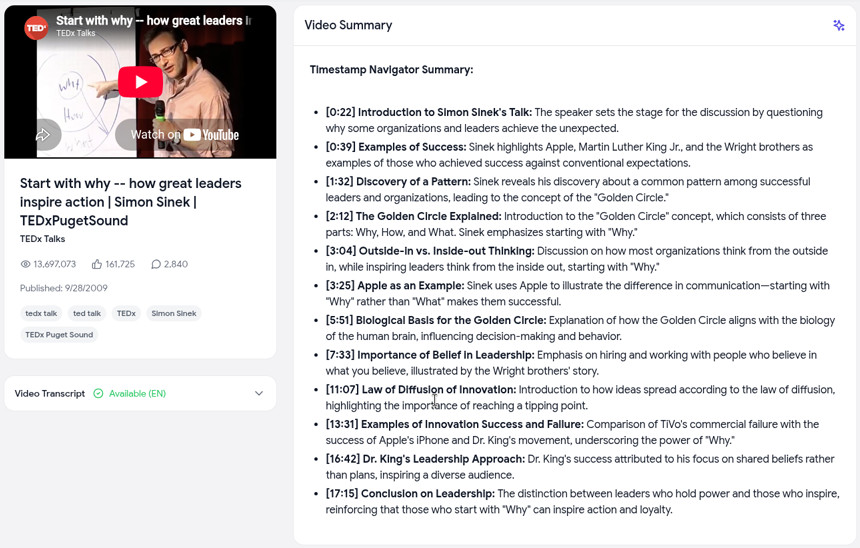
It's fast even on long videos. In our tests on October 10, 2026, a 14-minute TED talk took 8 to 14 seconds from click to finished summary, depending on the format. A 2-hour coding lecture took 15 seconds and a 3.5-hour lecture took 16 seconds. The summary usually started appearing within 10 seconds.
Good to know:
- It needs a transcript. The summary is built from the video's captions, including YouTube's auto-generated ones. If a video has no transcript, you'll get an error instead of a summary.
- Summaries come out in English. We tested two Spanish-language talks: the summary was in English, and the quotes in it stayed in Spanish.
- Shorts links aren't recognized. For a Short, change
youtube.com/shorts/IDtoyoutube.com/watch?v=IDbefore you paste it. - There's no custom prompt. If you have a specific question, use Chat with Video, or use Way 3.
Way 2: Use YouTube's built-in AI (the Ask button)
YouTube has its own AI, called Ask, built on Google's Gemini models. When it's available, you'll see an Ask button below the video (YouTube Help).
- Open the video on YouTube while signed in.
- Click or tap Ask below the video.
- Pick a suggested prompt, or type something like "Summarize this video in 5 bullet points."
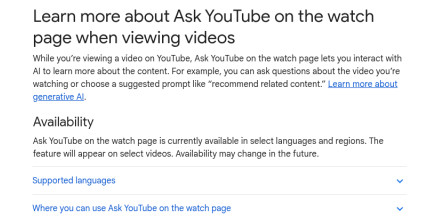
It's free, but it isn't available to everyone:
- You must be signed in and at least 13 (or the minimum age in your country).
- It only works in select countries and languages. On October 10, 2026, YouTube's list included the US, UK, Canada, India and Japan. It didn't include most of the EU (for example Germany, France, Spain and Italy) or Australia.
- It appears only on select videos, and not on supervised kids' accounts or YouTube Kids.
- YouTube warns that answers can be inaccurate. Conversations linked to your Google Account are deleted after 45 days, and human reviewers may read them.
On some videos, YouTube also shows a short AI-generated summary on its own, in the description area or in search results. You can't choose its format or length, and YouTube rolls it out to some accounts and not others. If you'd rather not see it at all, here's how to turn off YouTube's AI summary.
Way 3: Copy the transcript into ChatGPT, Gemini or Claude
Use this when you want the summary shaped for a specific purpose, like study notes, a meeting brief or the action steps only.
-
Get the transcript. Paste the link into our free transcript tool and click Get Transcript, then copy it. On YouTube, you can also open the description and click Show transcript. For more ways, see how to get a YouTube transcript.
-
Paste it into the chatbot, such as ChatGPT, Gemini or Claude, and tell it what you want. A few prompts that work:
- "Summarize this YouTube transcript in 7 bullet points. Keep the timestamps."
- "List every tool, book and number mentioned, with the time it was said."
- "Turn this lecture into study notes with headings, then write 5 quiz questions."
- "I have 2 minutes. What's the one argument this video makes, and what's the evidence?"
-
Ask follow-ups in the same chat, such as "expand point 3" or "what did they say about pricing?"
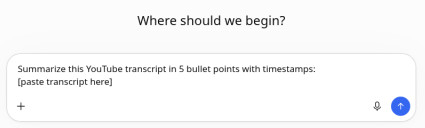
In our test, logged out, ChatGPT accepted the full transcript of an 18-minute TEDx talk (about 17,500 characters) and replied with this 5-bullet summary in about 30 seconds:
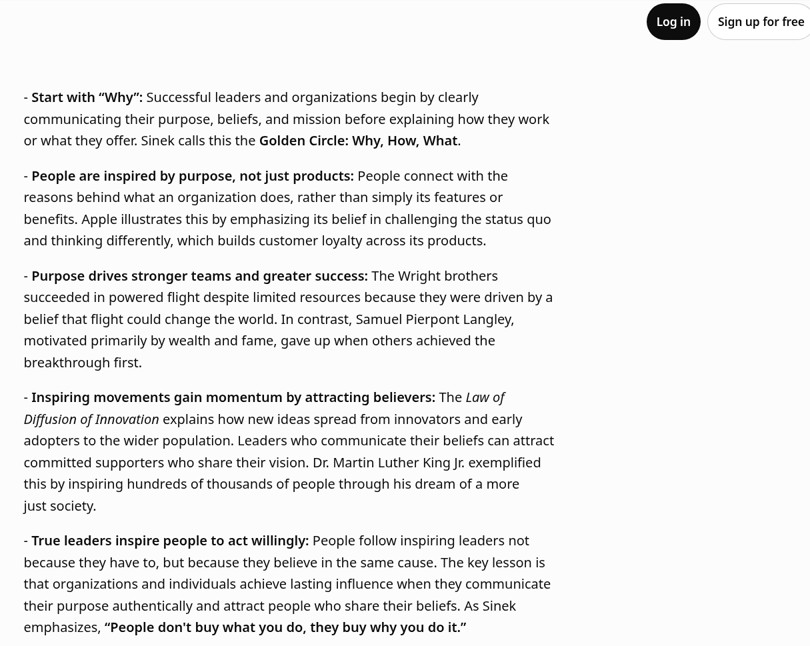
Why paste the transcript instead of the link? Chatbots differ here. Gemini can summarize public YouTube videos from a link (Gemini Help); in our test it even worked without signing in, though Google's help ties YouTube features to a signed-in account with Keep Activity on. OpenAI doesn't document a way for ChatGPT to watch a YouTube video, so a link alone may get you a guess based on the title. Pasting the transcript works the same everywhere.
Very long transcripts can run past a free chatbot's input limit. If that happens, paste the transcript in two or three parts. Ask for a summary of each part, then ask for one summary of all of them. For a clean text file you can upload instead, see how to download a YouTube transcript.
How to summarize a YouTube video on your phone
- Fastest: in the YouTube app, tap Share, then Copy link. Open the summarizer in Safari or Chrome, paste the link and tap Get Summary. Nothing to install.
- Inside YouTube: tap Ask below the video, if your account has it.
- With a chatbot: in the Gemini app, paste the YouTube link and ask for a summary. In the ChatGPT app, paste the transcript.
FAQ
Can AI summarize a YouTube video? Yes. Any AI that can read the video's transcript can summarize it. Dedicated summarizers fetch the transcript for you; general chatbots work best when you paste it in. To compare the options, see the best AI YouTube video summarizers.
Can ChatGPT summarize a YouTube video? Yes, if you give it the transcript. Copy it from our transcript tool or YouTube's Show transcript panel and paste it in with your prompt. With only a link, ChatGPT may not be able to see what's said in the video.
How do I summarize a long YouTube video, like a 2-hour podcast? Use an AI summarizer: ours finished a 3.5-hour video in 16 seconds in our tests. With a chatbot, split very long transcripts into parts if it says the text is too long.
Can I summarize a YouTube video that has no captions? Not with transcript-based tools like ours, YouTube's own transcript panel, or the paste-the-transcript method, because there's no text to read. You'd need a tool that transcribes the audio itself, which is usually a paid feature.
Can I summarize a video in another language? Yes. Our summarizer handles non-English videos and returns the summary in English. With a chatbot, just ask for the summary in the language you want.
Is there a free way to summarize YouTube videos? All three methods here are free. Our summarizer needs no account and has no quota. For what other "free" tools really include, see our guide to free YouTube video summarizers.
Related guides
- Best AI YouTube video summarizers: nine tools compared on price, limits and sign-up.
- Free YouTube video summarizer: what's actually free, and what the catches are.
- How to turn off YouTube's AI summary: hide YouTube's own AI summaries and Ask button.
- YouTube transcript: five free ways to get the text of any video.