YouTube to MP4: Convert and Download Free (HD and 4K)
Quick answer (TL;DR): To convert a YouTube video to MP4, paste the URL into The YouTube Tool's downloader, choose MP4 at your preferred quality (up to 4K where available), and save. It is free, browser-based, and watermark-free, and the MP4 you get plays on every phone, computer, and editor without any extra software.
You want a YouTube video saved as a normal MP4 file — something you can play on your phone, drop into an editor, or keep offline without installing extra software. A YouTube to MP4 converter does exactly that: paste the link, pick a quality, download. MP4 is the format almost every device understands, which is why most people ask for it instead of other file types.
The part that trips people up is not the format itself. Some free tools cap you at 720p or give you a video with no sound. A good converter avoids both. Below is how to convert for free, what file sizes to expect, and how to pick the right format when MP4 is not the best fit.
How do you convert a YouTube video to MP4 for free?
- Copy the YouTube video URL from the address bar or the Share menu (
youtube.com/watch?v=…, ayoutu.be/…short link, or a Shorts link all work). - Paste it into the free downloader. It reads the video and lists the available qualities.
- Choose MP4 and your quality, then download. The file saves straight to your device, ready to play or drop into an editor.
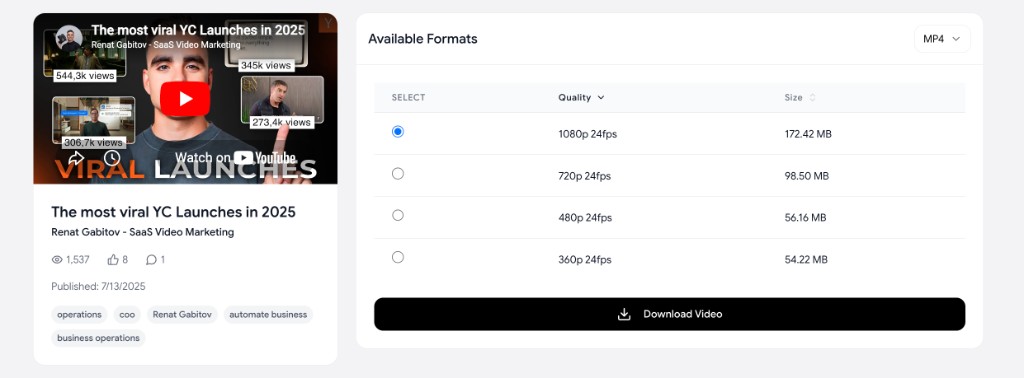
No account, no software install, no watermark. For the device-by-device version (iPhone, Android, desktop) and other methods, see the pillar guide on how to download YouTube videos. Shorts links (youtube.com/shorts/…) work the same way — or use the dedicated YouTube Shorts downloader guide for vertical clips.
What resolution and file size will the MP4 be?
Your MP4 can be any quality the creator uploaded, from 360p up to 4K (2160p), with one honest limit: a converter cannot exceed the source. If the video only exists in 1080p, the best MP4 is 1080p. For the full picture on high resolutions, including the 8K edge case and codec compatibility, read how to download YouTube videos in 4K and 1080p.
Approximate MP4 file sizes by resolution and video length (actual sizes vary with motion, frame rate, and how the video was encoded):
| Resolution | ~10 minutes | ~30 minutes | ~1 hour |
|---|---|---|---|
| 360p | ~15 MB | ~45 MB | ~90 MB |
| 480p | ~25 MB | ~75 MB | ~150 MB |
| 720p | ~35 MB | ~100 MB | ~200 MB |
| 1080p | ~70 MB | ~200 MB | ~450 MB |
| 4K (2160p) | ~180 MB | ~550 MB | ~1.5 GB |
Use these as planning numbers before you download — a fast-moving 4K gaming clip will run larger than a static talking-head video at the same resolution.
MP4 vs MP3 vs WebM: which should you choose?
Pick based on what you are going to do with the file.
| Format | What it holds | Choose it when |
|---|---|---|
| MP4 | Video + audio, H.264/AAC | You want the video and want it to play anywhere. The safe default. |
| MP3 | Audio only | You only need the sound (music, a podcast, a lecture). Much smaller files. |
| WebM | Video + audio, VP9/AV1 | You want the smallest high-quality file and you know your player supports it. |
In practice, MP4 is right the vast majority of the time. Reach for MP3 only when the picture is irrelevant, and WebM only if you specifically want YouTube's smaller native file and have a player that handles it.
Why do some "YouTube to MP4" tools give you 720p or no audio?
This is the most common complaint, and it traces back to one technical fact. YouTube provides a single progressive file (video and audio already combined) only up to 720p. Every resolution above that is adaptive: separate video-only and audio-only streams. A converter that just grabs the easy progressive file is stuck at 720p. One that grabs the separate streams but does not merge them correctly leaves you with a silent video. A converter built properly fetches both adaptive streams and muxes them into one MP4, which is how you get a 1080p or 4K MP4 with perfect audio. If a tool keeps capping you at 720p, that is the reason.
For power users who want total control over streams and formats, the open-source yt-dlp exposes all of this from the command line. For everyone else, a good browser converter handles the merge invisibly.
FAQ
How do I convert a YouTube video to MP4 for free? Paste the video URL into a free browser converter, choose MP4 and your quality, and download. There is no signup, no software, and no watermark.
Can I convert YouTube to MP4 in 1080p or 4K? Yes, as long as the video was uploaded at that resolution. A good converter merges YouTube's separate high-resolution streams so the MP4 keeps its audio. See downloading in 4K and 1080p.
Why is my YouTube to MP4 download only 720p or has no sound? YouTube only serves a combined file up to 720p; higher resolutions come as separate video and audio streams. A converter that does not merge them caps at 720p or produces a silent file. Use one that muxes the streams.
Is MP4 better than WebM for YouTube downloads? MP4 is more compatible and plays on virtually every device and editor, which is why it is the safe default. WebM files are smaller at the same quality but need a player that supports VP9 or AV1.
Do I need to install software to convert YouTube to MP4? No. A browser-based converter does everything online with nothing to install. Desktop tools like 4K Video Downloader or yt-dlp are only worth it for bulk jobs.
Is it legal to convert YouTube videos to MP4? Downloading your own videos or content you have rights to is generally fine. Downloading someone else's video without permission may violate YouTube's Terms of Service. See the pillar guide for more on the legal side.
What else is in the YouTube download cluster?
- How to download YouTube videos — Pillar guide: devices, playlists, Premium vs real files.
- How to download YouTube videos in 4K and 1080p — True 4K vs upscaled, codec compatibility, file sizes.
- YouTube Shorts downloader — Watermark-free vertical Shorts for cross-posting.