How to Download YouTube Videos on iPhone (Free, No App)
Quick answer: To download a YouTube video on iPhone, copy the video link in the YouTube app (Share → Copy link), open the YouTube video downloader in Safari, paste the link, tap Get download options, pick a quality, and tap Download Video. The MP4 lands in the Files app under Downloads. To put it in Photos, open it in Files, tap Share, then Save Video. No app, no sign-up.
There's no App Store app you need for this. Safari can download files on its own, and that's all a web downloader needs. The other route is YouTube Premium, which saves videos for offline viewing inside the YouTube app only. Both are covered below so you can pick the one that fits.
How do you download a YouTube video on iPhone?
- Copy the video link. In the YouTube app, tap Share under the video, then Copy link. In Safari on youtube.com, copy the address from the address bar. Regular videos, Shorts and
youtu.belinks all work. - Open the downloader in Safari. Go to theyoutubetool.com/download, tap the link field and paste.
- Tap Get download options. After a few seconds you'll see the video's details and a table of qualities with file sizes.
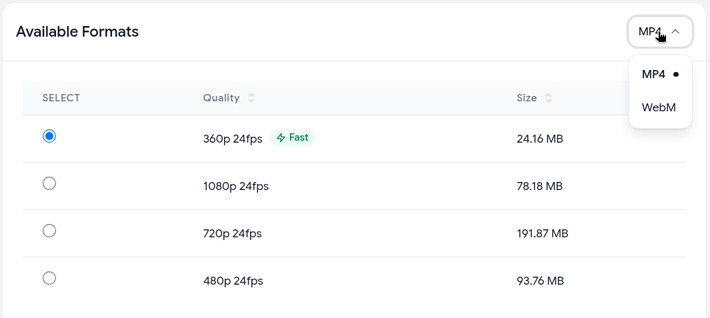
- Pick a format and quality. MP4 is the default and the one to use on iPhone; the menu at the top right of the table switches to WebM, which you don't need here. You can choose 360p, 480p, 720p or 1080p, depending on what the video was uploaded in. The 360p row marked Fast comes straight from YouTube's servers; higher qualities are prepared on our server first, so they take longer.
- Tap Download Video. If Safari asks whether you want to download the file, tap Download.
That's it. The file is a normal MP4 with sound. It's named after the video, with "Downloaded by theYouTubeTool.com" at the end.
Where do downloaded YouTube videos go on iPhone?
Safari saves downloads to the Downloads folder in the Files app. Apple's steps to find them (Apple Support):
- Right after downloading: tap the Downloads button next to Safari's search field, then tap the file.
- Later: open Files, tap Browse, then iCloud Drive, then Downloads.
If you changed Safari's download location in Settings, the file goes to the folder you chose instead.
How do you save the video to Photos?
Files and Photos are separate on iPhone, so a downloaded video doesn't appear in your camera roll until you move it:
- Open the video in Files (Downloads folder).
- Tap the Share button.
- Tap Save Video.
The video now shows up in Photos, where you can trim it, share it, or send it with AirDrop. You can delete the copy in Files afterwards to save space.
What if the video opens instead of downloading?
The Fast (360p) option links straight to YouTube's media server, so Safari may open the video in a player instead of saving it. If that happens, go back and pick a higher-quality row, which saves as a file. Or tap the Share button while the video is playing and look for Save to Files.
For long videos, keep Safari open on the page until the download finishes. Large 1080p files can take a while to prepare, and closing the tab can stop the download.
Can you download just the audio on iPhone?
Yes. Use the YouTube to MP3 downloader instead. Paste the link, tap Get MP3 download, then choose M4A (Fast) or MP3 at 128, 192 or 320 kbps. M4A plays in the Files app and in most music apps on iPhone. See the YouTube audio downloader guide for which format to pick.
What about YouTube Premium downloads on iPhone?
YouTube Premium is the official way to watch YouTube offline. With an active membership, tap Download under a video in the YouTube app, and it's saved for offline playback (YouTube Help).
The trade-offs:
- The video stays inside the YouTube app. It doesn't appear in Files or Photos, so you can't edit it, AirDrop it, or open it in another app.
- It needs a check-in. Downloaded videos play offline for up to 29 days. After that, you have to reconnect so the app can check the video is still available (YouTube Help).
- It ends with your membership. If Premium ends, you lose access to your downloaded videos (YouTube Help).
| Web downloader in Safari | YouTube Premium | |
|---|---|---|
| Cost | Free | Paid monthly membership |
| What you get | An MP4 file in Files (and Photos if you save it there) | An offline copy inside the YouTube app |
| Edit, share, AirDrop | Yes | No |
| Quality | 360p to 1080p | Set in YouTube's download settings |
| Works without an account | Yes | No, you must be signed in to Premium |
If you just want to watch on a flight and you already pay for Premium, use Premium. If you need the actual file, for editing, sharing or keeping, use the downloader.
Do you need a YouTube downloader app for iPhone?
No. A web downloader works in Safari with nothing to install, and it works the same way on iPad. You don't have to give an app access to your files, and there's nothing to update. For what to look for in a free tool, and what to avoid, see our guide to a free YouTube downloader.
FAQ
Can I download YouTube videos on iPhone without an app? Yes. Paste the link into the YouTube video downloader in Safari and tap Download Video. Safari saves the MP4 to the Files app.
Why can't I find the video in Photos? Safari saves downloads to Files, not Photos. Open the video in Files → Downloads, tap Share, then Save Video.
Does it work on iPad? Yes. The steps are the same in Safari on iPad, and the file goes to the Downloads folder in Files.
Can I download YouTube Shorts on iPhone? Yes. Copy the Short's link with Share → Copy link and paste it the same way. See the YouTube Shorts downloader guide for more.
What's the highest quality I can download? Up to 1080p, if the video was uploaded at that resolution or higher. The quality table only lists what's available for that video.
Can I download a whole playlist on iPhone? Not with this tool. It takes one video link at a time; playlist links aren't accepted.
Related guides
- How to download YouTube videos: every device, including Android, Windows and Mac.
- YouTube to MP4: when MP4 is the right format and what file sizes to expect.
- YouTube audio downloader: save just the sound as M4A or MP3.
- Free YouTube downloader: what to look for, and avoid, in free tools.